Synchronizing Projects with Stationery
ePublisher Express projects use Stationery designed in ePublisher Designer by the Stationery designer. From time to time, the Stationery designer may update the Stationery used by your ePublisher Express project. When the Stationery designer updates the Stationery, you must synchronize your ePublisher Express project with the Stationery associated with the project in order to obtain the updates made by the Stationery designer. For more information about Stationery, see Stationery.
Note: Synchronization is a property of the project, not of the product you open it in. Since 2026.1, ePublisher Designer opens Express projects as well, and an Express project prompts for and performs synchronization the same way in either product. A project can also be linked to an ePublisher Designer project (a
.wepfile) instead of to a Stationery file, in which case everything in this section applies with that design project in the place of the Stationery. For more information, see Creating a Linked Project from a Design Project.
When the Stationery designer updates the Stationery an ePublisher Express project uses, ePublisher detects the change the next time you open a project that uses the Stationery, notifies you that the Stationery used by the project has been modified, and prompts you to synchronize your project with the updated Stationery. ePublisher Express prompts you to synchronize your project with its Stationery file under the following conditions:
ePublisher detects differences between the project manifest file and the Stationery manifest file.
ePublisher detects modifications to the Stationery file used by the project.
When you synchronize your project with Stationery, you update your project file so that the information in your project file matches the information in the Stationery file and in the Stationery manifest file. Synchronizing the project file with the Stationery file and the manifest file ensures all of the settings and information in the project file match all of the settings and information in the Stationery file. For more information about the Stationery file and the Stationery manifest file, see Manifest Files and Stationery Files.
Based on your ePublisher implementation, after you create an ePublisher Express project using Stationery, you can customize target settings for the targets available in your project if you have appropriate permissions. You can only customize target settings in your ePublisher Express project if you have target setting modification permissions. Any customizations you make to target settings will be overwritten the next time you synchronize your ePublisher Express project with Stationery. For more information, see Working with Target Settings.
ePublisher Express allows you to synchronize your project with its associated Stationery using one of the following methods:
Automatically synchronize projects with Stationery. For more information, see Automatically Synchronizing ePublisher Express Projects with Stationery.
Manually synchronize projects with Stationery. For more information, see Manually Synchronizing ePublisher Express Projects with Stationery.
Manifest Files
When you create a project based on Stationery in ePublisher Express, ePublisher copies the manifest file used by the Stationery you specify for the project and places a copy of the Stationery manifest file in the project folder for the new ePublisher Express project. The manifest file is a record of all of the files associated with the Stationery file, including all of the files listed in the following project folders:
Formats folder
Targets folder
Files folder
For more information about project folders, see Project Folder Structure.
Any time the Stationery designer performs one of the following actions in the Stationery Formats, Targets, or Files folder, ePublisher updates the Stationery manifest file:
Modifies a file in a folder
Adds a file to a folder
Removes a file from a folder
When you open an existing ePublisher Express project, ePublisher compares the ePublisher Express project manifest file to manifest file of the Stationery associated with the ePublisher Express project and determines if there are differences between the manifest file.
If the Stationery designer has updated, removed, or added any files to the Formats, Targets, and Files folder in the Stationery since the last time you opened your ePublisher Express project, ePublisher detects these differences and prompts you to synchronize your ePublisher Express project with the Stationery file. When you synchronize your ePublisher Express project with the Stationery file, ePublisher copies the Stationery's updated manifest file over to your ePublisher Express project file and adds, removes, and updates files in the Formats, Targets, and Files folders for your project as appropriate.
For example, assume that the Stationery designer updated the Stationery you use for one of your projects by adding a new Page.asp file. When the Stationery designer makes this change, ePublisher updates the Stationery manifest file with the change. After the Stationery designer makes this change, the next time you open up your ePublisher Express project that uses the changed Stationery, ePublisher Express recognizes that the ePublisher Express project manifest file is different than the Stationery project file and prompts you to synchronize your project to your Stationery file. When you synchronize your project, ePublisher adds the new Page.asp file to your project folders.
Stationery Files
When you open an existing ePublisher Express project, ePublisher Express determines if the Stationery used by the project has been modified by examining the checksum of the Stationery file. A checksum is a value that depends on the contents of a file. ePublisher uses the checksum to determine if a Stationery the file has changed. If the checksum of the Stationery file is different than the checksum of the project file, ePublisher Express prompts you to synchronize your project with the Stationery file associated with your project. Any changes to the following settings within the Stationery file will affect the checksum:
Style and format information
Conditions
Variables
Cross-reference definitions
Target settings
When to Synchronize
All ePublisher Express projects should be synchronized with Stationery any time the Stationery designer modifies the Stationery. ePublisher Express projects must be synchronized with the Stationery in order for ePublisher to include the changes made by the Stationery designer to the Stationery file in an ePublisher Express project. When you synchronize an ePublisher Express project (.wrp file) with Stationery (.wxsp file), ePublisher updates the information in the ePublisher Express project to match the information in the Stationery file. If you choose not to synchronize, your project will retain its old settings and the information in the project file will not match the information in the Stationery file until you synchronize.
Automatically Synchronizing ePublisher Express Projects with Stationery
When you open an existing project, ePublisher Express automatically detects whether any modifications have been made to the Stationery file. If any changes have been made to the Stationery, ePublisher Express displays a window notifying you that the Stationery has been modified. When this window displays, you can choose to synchronize your project to the modified Stationery file. You can also choose to synchronize your project to new Stationery.
To automatically synchronize an ePublisher Express project with Stationery
Open the project in ePublisher Express or ePublisher Designer. If the Stationery designer has modified the Stationery linked to your project, ePublisher displays a window that tells you that the Stationery the project is linked to has been modified. The window ePublisher displays should be similar to the following window.
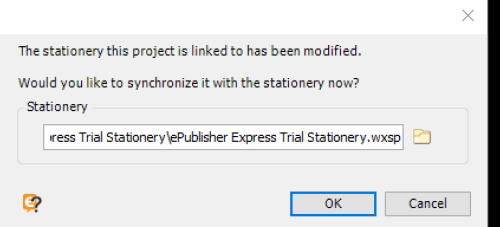
If you want to synchronize your ePublisher Express project with the specified Stationery, click OK.
If you want to synchronize your ePublisher Express project with different Stationery, complete the following steps:
Click the folder icon, and then browse to the location of the Stationery with which you want to synchronize your ePublisher Express project.
Select the Stationery (
.wxspfile), and then click Open.Click OK again.
If you do not want to synchronize your ePublisher Express project with Stationery, click Cancel.
Manually Synchronizing ePublisher Express Projects with Stationery
You can manually synchronize your project file with Stationery at any time. When you manually synchronize your project file with Stationery, ePublisher Express prompts you to specify the Stationery with which you want to synchronize your ePublisher Express project. You can synchronize your ePublisher Express project with the Stationery currently associated with your ePublisher Express project, or you can specify that you want your ePublisher Express project to synchronize with different Stationery.
To manually synchronize an ePublisher Express project with Stationery
With the project open in ePublisher Express or ePublisher Designer, on the File menu, click Synchronize with Stationery.
Note: Only projects that are based on Stationery can be synchronized. A Stationery design project (a
.wepfile) has nothing to synchronize with, because it is the design itself rather than a project based on one, so the command does not apply to it. This is a property of the project, not of the product: ePublisher Designer synchronizes an Express project it has open exactly as ePublisher Express does.Browse to the location of the Stationery to which you want to synchronize your project. By default, ePublisher saves Stationery to the following folder:
Documents\ePublisher Stationery\<ProjectName>, where ProjectName is the name of the project used to create the Stationery.Select the Stationery (
.wxspfile), and then click Open. ePublisher synchronizes the project with the specified Stationery.The browse window also accepts an ePublisher project (a
.wepor.wrpfile), so a project that is linked to a design project rather than to Stationery can be pointed at its origin here, or moved from one origin to another.
Project Information that is not Synchronized
Most items are synchronized with Stationary but the following are not:
Merge Settings
All settings in the Document Manager Pane
Preferences